
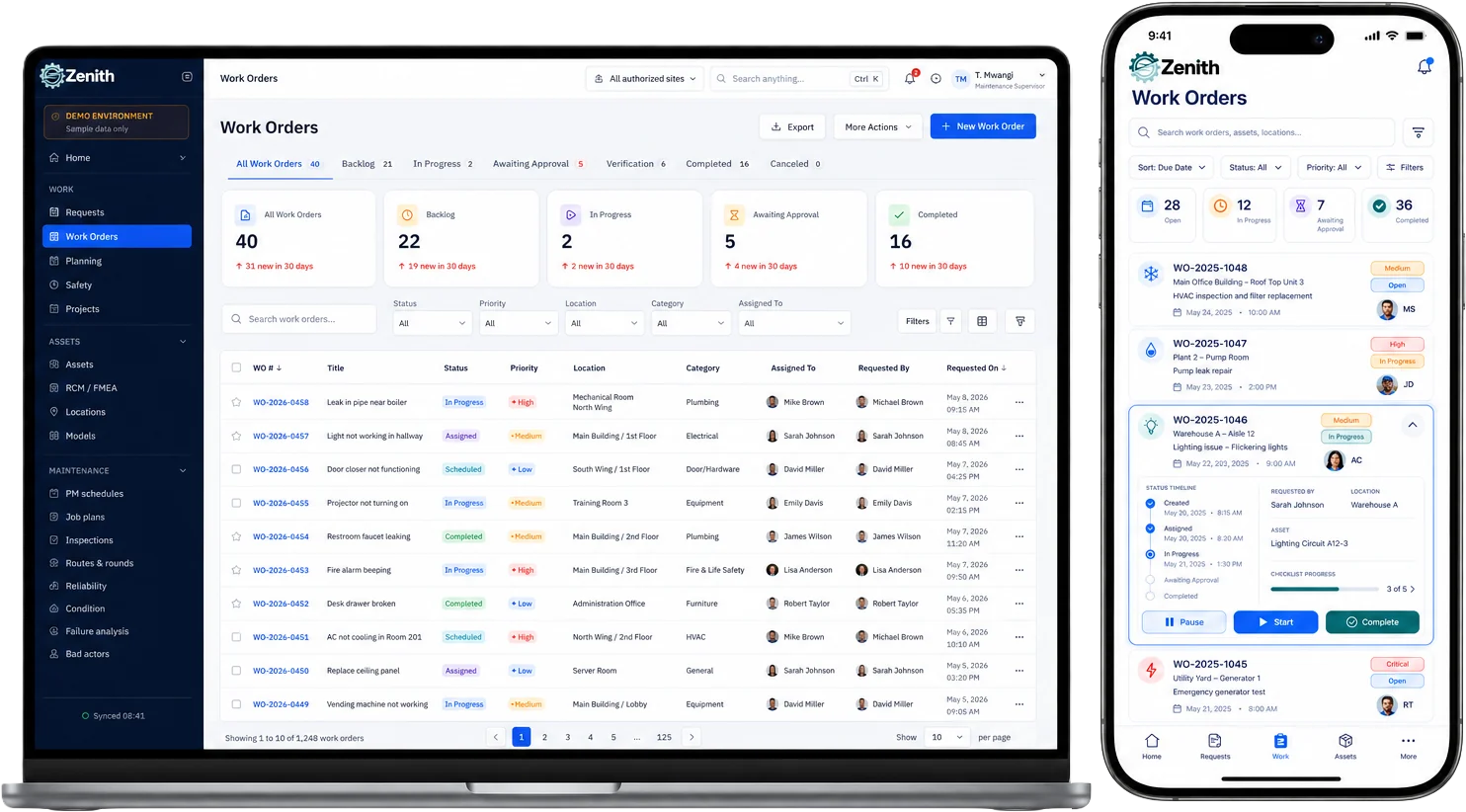
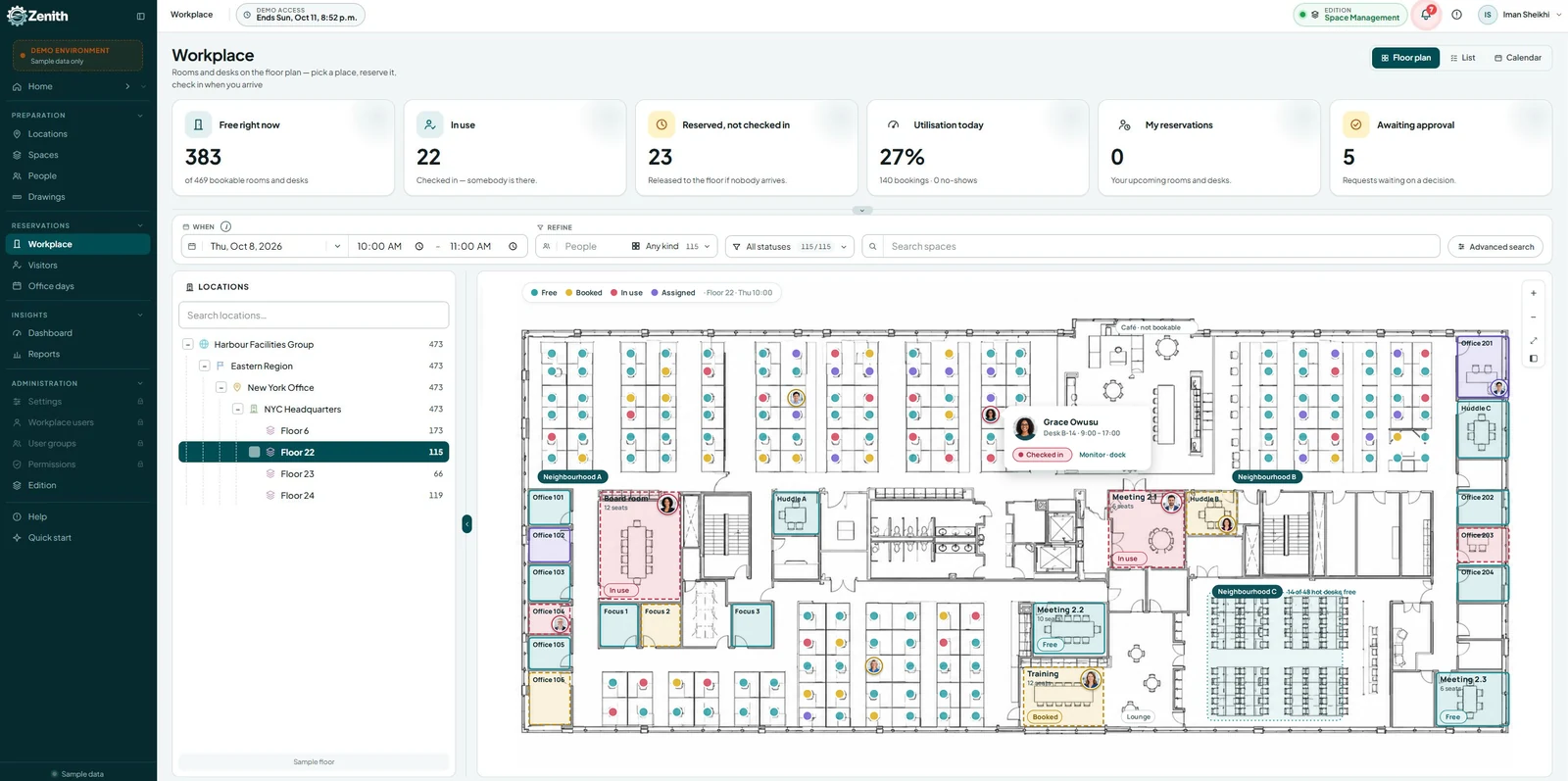

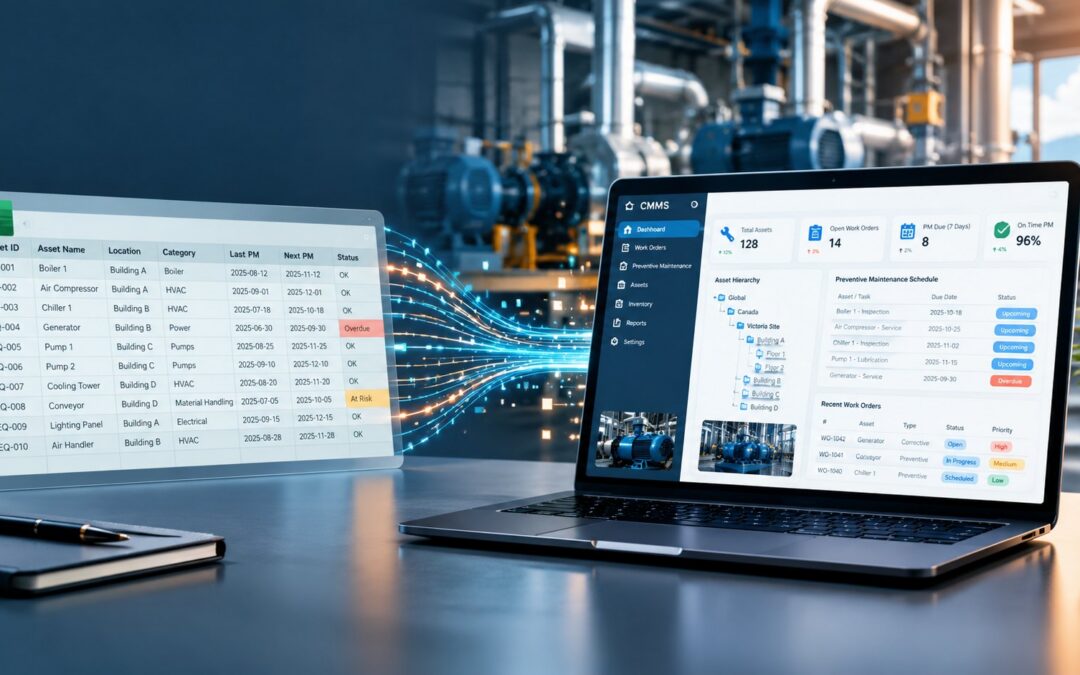
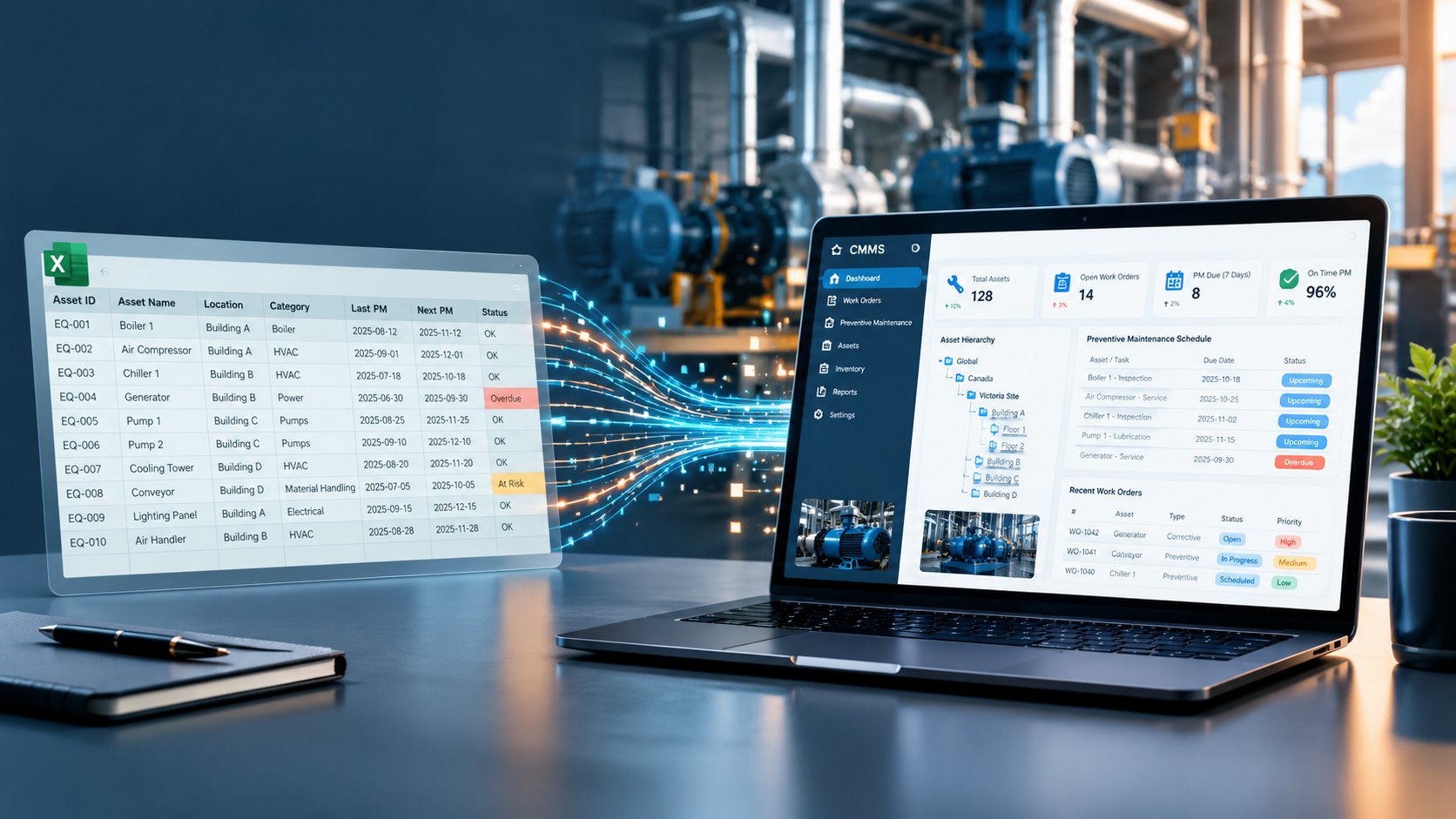
Most maintenance teams do not start with a CMMS. They start with a spreadsheet: an asset list someone built years ago, a PM calendar on another tab, a work order log, and a parts list that lives on the storeroom computer. Moving all of that into a CMMS (computerized maintenance management system) sounds like a big project. In practice it is a short, orderly data job, and most of the work is deciding what to keep. This guide walks through the move in eight steps, shows a realistic timeline for one site, and explains how Zenith’s team does most of the heavy lifting for you.
If you are still deciding whether to move at all, start with our comparison of CMMS vs Excel, or the six signs in how to track equipment maintenance. This article assumes you have decided and want to know how.
What you are actually moving
Before anyone opens a template, list every file your team uses to run maintenance. Most organizations find five kinds of information, often spread across more files than they expected:
- Locations: sites, buildings, floors and rooms, even if they only appear as a column in the asset list.
- Assets: the equipment register, with tags, makes, models, serial numbers and install dates.
- Preventive maintenance: what gets done, on which equipment, and how often.
- Work order history: what broke, when, what was done and by whom.
- Supporting lists: parts and stock, vendors and contractors, and the people who request or do the work.
Write down where each one lives and who owns it. That list becomes your migration checklist, and it often shows that two people keep two different versions of the same asset list.
How to move from spreadsheets to a CMMS: eight steps
1. Decide what moves and what gets archived
Not everything in the spreadsheets deserves a place in the new system. Current assets, active PM tasks, open work orders, stocked parts and active vendors should move. For history, most teams bring the last two or three years, which is enough to see repeat failures and trends, and keep the full spreadsheet as a read-only archive. Retired equipment and contractors you no longer use can stay in the archive too.
2. Build the location tree first
Every asset needs a home, so locations come first. Agree on the levels you will use, for example site, building, floor and room, and write the full list before you touch the assets. A clean location tree is what lets a technician find a machine, a requester report a problem in the right room, and a manager compare one building with another later.
3. Agree on asset IDs, names and classes
Spreadsheets tolerate inconsistency; a CMMS should not. Decide three things before cleaning anything:
- The asset ID: keep your existing tags if they are unique and printed on the equipment. If they are not, choose a simple pattern and stick to it.
- The naming rule: for example “Type, number, location”, so that “Air handler 2, Level 3” reads the same everywhere.
- Classes and types: a short, fixed list such as HVAC, electrical, plumbing and life safety, each with its types, instead of whatever people typed over the years.
4. Clean the data
This is the step that takes the most time, and the one that pays off the most. Remove duplicate rows, split cells that hold two values, replace “see above” and merged cells with real values, write dates in one format, and turn free-text statuses into a short list. Our companion guide on how to prepare your asset spreadsheet for a CMMS import has a full checklist and a free Excel template with the columns already laid out.
5. Map your columns to the CMMS fields
Your spreadsheet says “Unit #”, “Equip. Tag” or “Asset No.”; the CMMS has one field for the asset ID. Mapping is simply deciding which of your columns fills which field, and what to do with columns that have no home. Do this once, on paper, and agree on it with whoever owns each list.
6. Run a test import and fix what it refuses
Import a small batch first, ideally one building. A good CMMS checks every row before saving it and tells you exactly why a row was refused: a duplicate ID, a location that does not exist, a date it cannot read. Fix those rows in the spreadsheet, not in the system, so your source stays clean, then import the rest.
7. Walk the floor to verify
An import proves the data is consistent, not that it is true. Send a technician through the building with a phone: find each asset, confirm its location and tag, and take a nameplate photo. This walk-down usually turns up equipment nobody listed and lines for machines that left years ago. It is also the right moment to stick QR labels on the equipment.
8. Switch on PM schedules and retire the spreadsheet
Once assets are verified, load the PM schedules so the system starts generating work orders on its own. Then make the old spreadsheet read-only and tell everyone the date it stops being updated. Running both in parallel for more than a couple of weeks is how teams end up with two versions of the truth again.
A realistic timeline for one site
For a single site with a few hundred assets, the move usually takes four to six weeks of part-time effort:
| Week | What happens | Who is involved |
|---|---|---|
| 1 | List the files, decide what moves, draft the location tree and naming rules | Maintenance manager, one senior technician |
| 2 to 3 | Clean the asset, PM and parts lists; map columns | Whoever owns each list |
| 3 | Test import of one building, fix refused rows, import the rest | Administrator, with vendor support |
| 4 | Walk-down with phones, QR labels, corrections | Technicians |
| 5 to 6 | PM schedules switched on, requesters invited, spreadsheet made read-only | Whole team |
Larger estates repeat the same pattern one site or one department at a time. The first site becomes the template for the rest, which is much faster than trying to move everything at once.
Mistakes that slow the move down
- Importing everything “just in case”. Ten years of history and every retired asset make the new system as cluttered as the old spreadsheet.
- Cleaning inside the new system. Fix the source file, so a second import does not bring the same errors back.
- Skipping the walk-down. A register nobody has checked on the floor loses the technicians’ trust in the first week.
- Letting the spreadsheet live on. If both are updated, neither is trusted.
- Designing the perfect class list first. Start with a short list you can extend; you will learn more in the first month of use than in any workshop.
How Zenith helps you move from spreadsheets
Zenith is a Canadian CMMS, and moving teams off spreadsheets is a large part of what our implementation team does. You do not have to run the eight steps above alone:
- Send us your spreadsheets as they are. We propose the location tree, naming rules and column mapping, and walk your team through them before anything is loaded.
- A guided import that checks every row. Assets, locations, parts, vendors, people, PM schedules and open work orders go in through an import that validates each row before saving it and names the reason for every refusal.
- Quick Add for the small batches. Paste rows straight from a spreadsheet into the asset register; each row is checked on the spot, and a duplicate ID is refused on the row, not at the end.
- Templates from your equipment models. A model in the catalogue carries its class, type, maker and specifications, so ten identical pumps are created with the details already filled in.
- A walk-down built for phones. Print QR label sheets from any selection of assets, then confirm locations and take nameplate photos from a phone. From the Essential edition up, the technician pages keep working offline in the basement where the signal drops.
- Your data stays yours. Zenith is hosted in Canada on Microsoft Azure, works in English and French, and any register can be exported back to Excel at any time.
Implementation starts from $1,280 CAD, quoted up front, and includes a two-week pilot at one site, training for administrators and requesters, and two weeks of close support after go-live. Editions and prices are on our pricing page.
Questions people ask
How long does it take to move from spreadsheets to a CMMS?
For one site with a few hundred assets, four to six weeks of part-time work is typical. Most of that time goes into cleaning the data and the walk-down, not into the import itself.
Do we need to clean the spreadsheet before we start?
You need to agree on the location tree, IDs and classes first; the cleaning itself can happen alongside the test import, because the import shows you exactly which rows need attention.
Can we keep our work order history?
Yes. Most teams bring two or three years so trends and repeat failures stay visible, and keep the full spreadsheet as an archive.
What if our asset list is incomplete?
That is normal. Import what you have, then let the walk-down fill the gaps. Starting with an imperfect but checked list is far better than waiting for a perfect one.
Do technicians need training to use the CMMS?
Less than you might expect. A technician mostly needs to see their jobs, start and finish them, and add a note or photo from a phone. One short session is usually enough.
Where to start
First, list every maintenance spreadsheet your team uses and who owns each one. Then download our free CMMS import template to see the columns a clean import needs. When you are ready, book a demo and bring one of your spreadsheets; we will show you how it would look in Zenith.