

Staff say there are never any rooms. Facilities says the rooms sit empty half the day. A meeting room booking system should fix both, yet many offices buy one and keep both complaints. This guide explains what a meeting room booking system has to do, what Microsoft 365 already handles, the rules that make booking fair, and the questions to ask before you buy.
What a meeting room booking system does
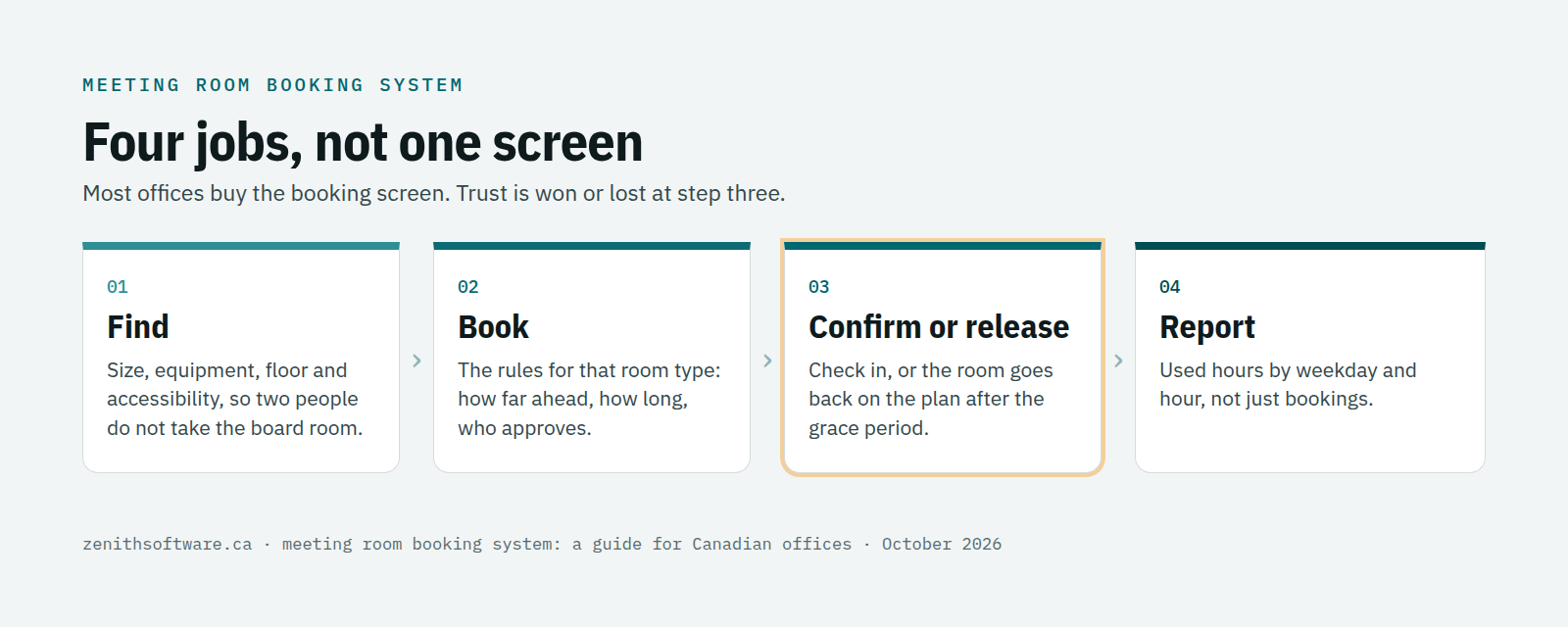
A good system does four jobs, and the booking screen is only one of them:
- Find. Search by size, equipment, floor and accessibility, so a two-person call does not take the ten-seat board room.
- Book. Apply the rules for that type of room: how far ahead, how long, and whether someone must approve it.
- Confirm or release. Ask people to check in, and hand the room back when nobody arrives.
- Report. Show how people really used rooms, by hour and by weekday, not just how often they booked them.
Most offices only buy the second job. The third is where trust is won or lost. Our guide to meeting room no-shows shows how much capacity disappears without it.
What Microsoft 365 already does
If your organization runs on Microsoft 365, you already own part of a meeting room booking system. Every room can have a room mailbox that accepts invitations from Outlook and Teams, with a booking window and a maximum meeting length.
Microsoft has also added check-in and automatic release. In Microsoft Places, Microsoft releases a room if nobody checks in within a set time, 10 minutes by default. People check in on a Teams panel, a Teams Rooms console, the meeting chat or by email. Microsoft recommends using it on rooms with Teams panels or Teams Rooms devices, and the licensing depends on the room. Teams panels have their own check-in setting, which is off by default.
So when do you need more? Usually when one of these is true:
- Most of your rooms are small and will never get a panel or a Teams Rooms device.
- People outside your Microsoft tenant book rooms: contractors, tenants, or community groups using a public building.
- Different rooms need different rules, including approval for some and not others.
- You want rooms, desks, visitors and maintenance on the same record, and a utilisation report you can defend.
If none of those apply, set up the Microsoft policies properly first. They cost nothing extra and fix a lot.
Booking rules for each type of meeting room
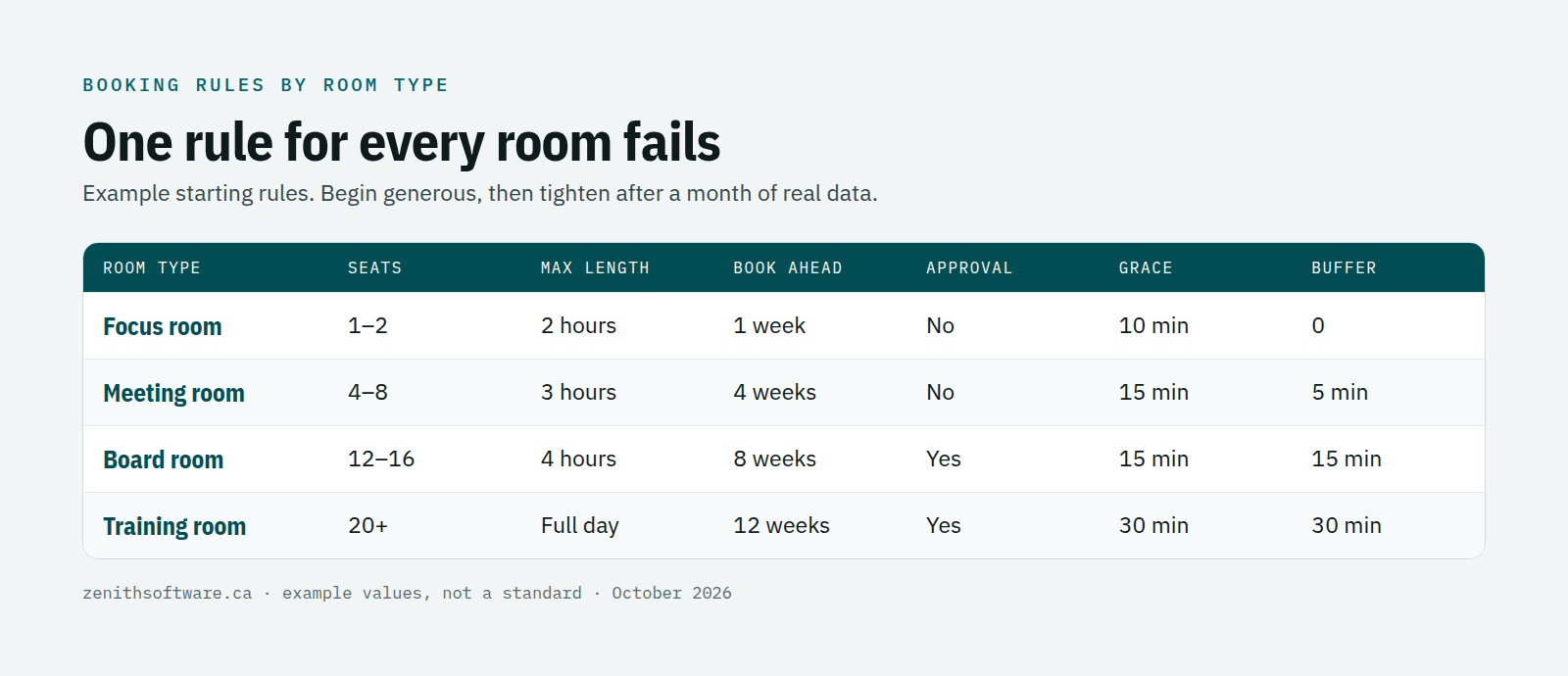
One rule for every room is the most common setup mistake. A focus room, a small meeting room and a board room are different promises. Give each type its own limits:
- Maximum length. Stops a half-day block for a forty-minute conversation.
- Advance window. How far ahead people can book. Shorter windows stop defensive holds.
- Approval. Only where it earns the friction, such as the board room or a training room with catering.
- Check-in grace period. Ten to fifteen minutes for ordinary rooms, longer for rooms that need set-up.
- Buffer. A few minutes between bookings, so the next group is not waiting in the doorway.
- Capacity. A booking cannot invite more people than the room holds.
Start generous, then tighten after a month of data. A rule that refuses a booking should say which rule and what the person can do instead. A bare “booking failed” sends everyone to the facilities inbox.
Do you need room panels?
A panel outside the door makes check-in easy and shows at a glance whether a room is free. It also costs money for every room, plus power, network and mounting. For a handful of busy rooms, panels are often worth it.
For the rest, check-in from a phone, a link in the booking or the meeting chat works well. A tablet showing a booking page in a browser can also do the job. Decide room by room, rather than buying panels for the whole floor on day one.
One privacy point: a screen in a corridor should show that a room is booked, not the meeting title. “Restructuring – HR” on a hallway display is a leak.
Canadian checks for a meeting room booking system
- Accessibility. People should be able to search for rooms with an accessible entrance or hearing support, and complete a booking with a keyboard or screen reader. Our accessible booking system checklist covers the AODA.
- English and French. Check the booking screens, notices and refusal messages in French, not just the menus.
- Privacy. Bookings record who met where and when. Ask where the vendor stores the data and how long it keeps it. Our desk booking software guide explains Quebec’s Law 25 rules on data leaving the province.
- Public buildings. If community groups book your rooms, read our notes on municipal space booking and the BPS Procurement Directive.
How to tell if your meeting room booking system is working
After the first full month, look at three numbers:
- No-show rate: booked hours nobody checked into, divided by booked hours.
- Used hours by weekday and hour: the 10 a.m. Tuesday peak matters more than the monthly average.
- Right-sizing: how often small meetings take large rooms.
Our guide on how to calculate space utilisation explains how to get a figure that survives a budget meeting.
Questions to ask in a meeting room booking system demo
- Book a room from Outlook. Does it appear in your system straight away, and the other way round?
- Show me what happens at 10:15 when nobody checked in to a 10:00 booking.
- Try to book the board room for six hours where the rule caps it at four. What does the person see?
- Find a room for eight people with a camera and an accessible entrance, using only a keyboard.
- Switch to French. Do the notices and error messages switch too?
- Can a contractor or a community group book without a Microsoft account?
- How is the price counted: per room, per panel, per employee or per administrator?
A meeting room booking system in Zenith
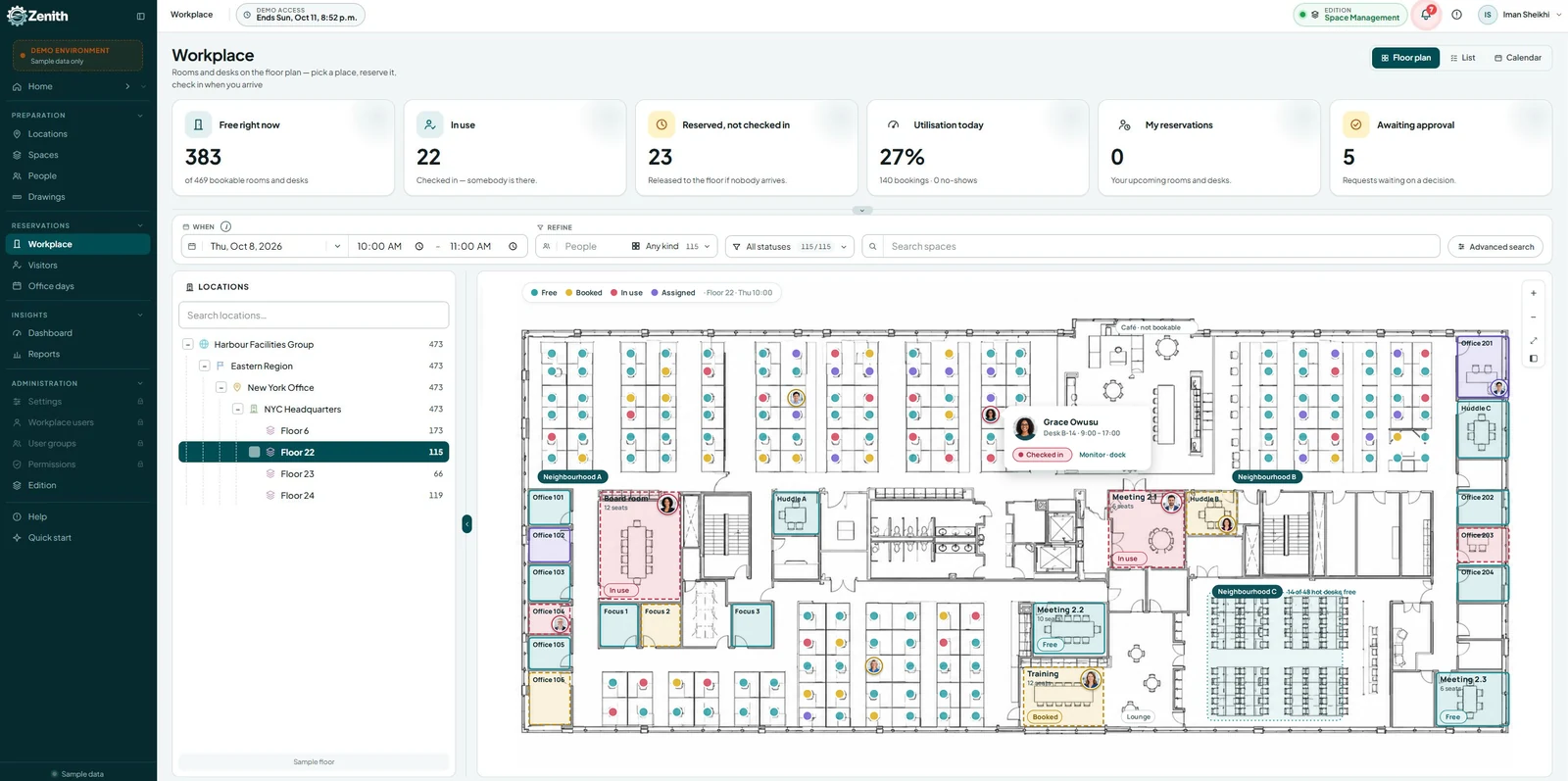
Zenith Workplace lets people find and book rooms from your own floor plan, a list, or a day and week view. You set the rules per space type and per site: maximum length, advance window, approval, buffers and capacity. When a booking breaks a rule, the screen names the rule and the earliest alternative.
Zenith includes check-in and automatic release, with the grace period set per room type. We configure Microsoft 365, Outlook and Teams on day one, with single sign-on through SAML or Microsoft Entra ID. A host can invite a guest to the room they are coming for through visitor management on the same platform. Because rooms share a record with maintenance, a room that is out of service for a repair can say so when someone tries to book it.
Zenith runs on Microsoft Azure in Canada, works in English and French, and meets WCAG 2.2 AA. Pricing counts administrator seats, not rooms or employees; see the pricing page.
Where it stops: Zenith has no dedicated room panel app, so a tablet outside a room shows a browser page. It does not attach catering or set-up requests to a booking, and it does not bundle occupancy sensors.
Questions people ask
Is a meeting room booking system the same as room scheduling software?
Yes, the terms mean the same thing. Our room scheduling software guide covers the wider category, including desks and other spaces.
How long should the check-in grace period be?
Ten to fifteen minutes for most meeting rooms. Rooms that need set-up, such as training rooms, deserve longer. Microsoft’s default in Places is 10 minutes.
Can we stop people booking rooms months ahead?
Yes: set an advance window per room type. Two to four weeks suits most meeting rooms. Board rooms and training rooms often need longer.
Do we need sensors?
Not to start. Check-in tells you whether anyone used a booking, and frees the room when nobody did. Our comparison of occupancy sensors and booking data explains when sensors add something.
Where to start
List your rooms with their real capacity and equipment, and group them into three or four types. Write one line of rules for each type. Then switch on check-in for a month and read the numbers before changing anything else. Talk to us if you would like to see your own floor and rooms in Zenith.
Published by Zenith Software Corp., Victoria, British Columbia · October 2026. Microsoft features and licensing change often; we checked Microsoft’s documentation in October 2026, so confirm the current position for your tenant.