
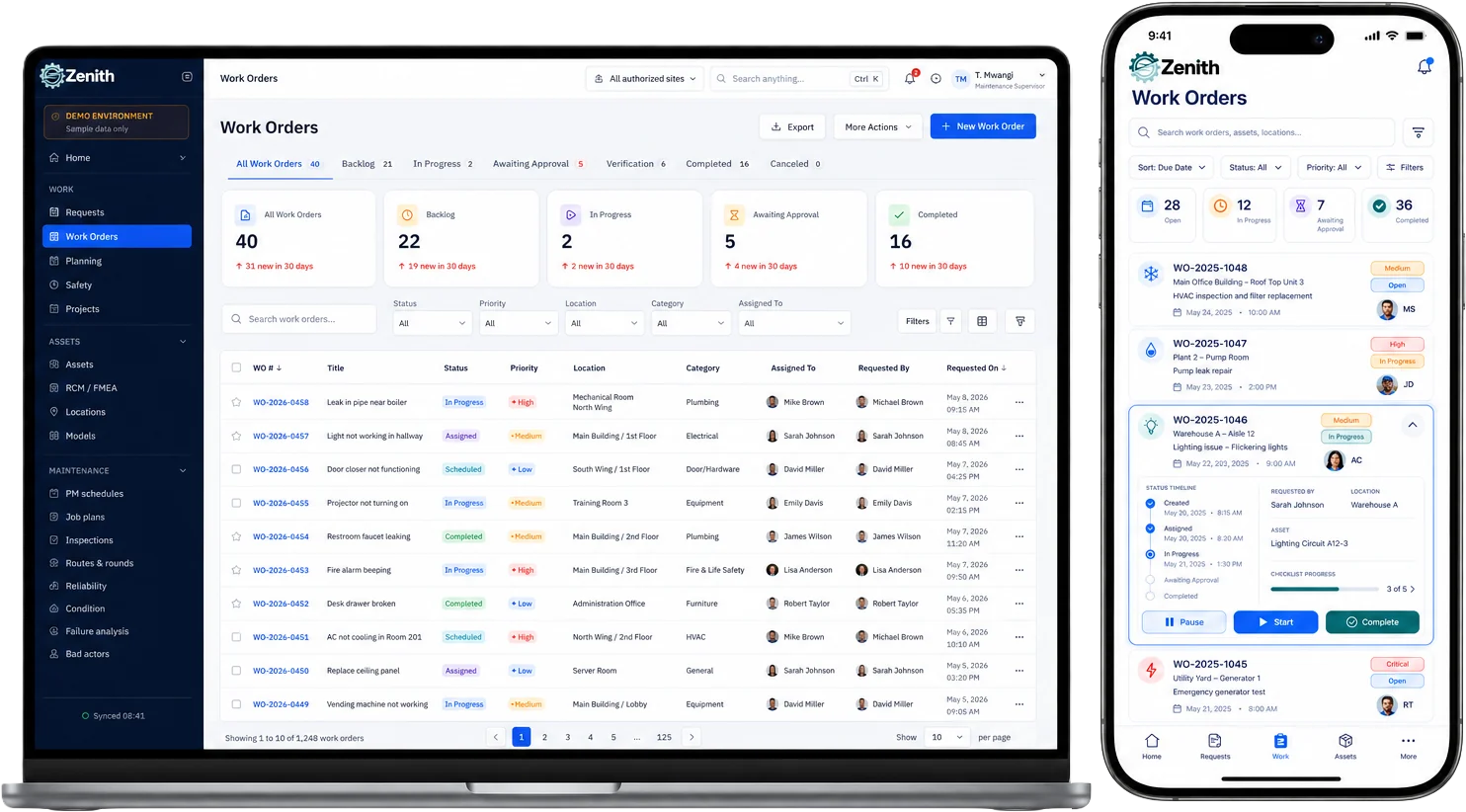
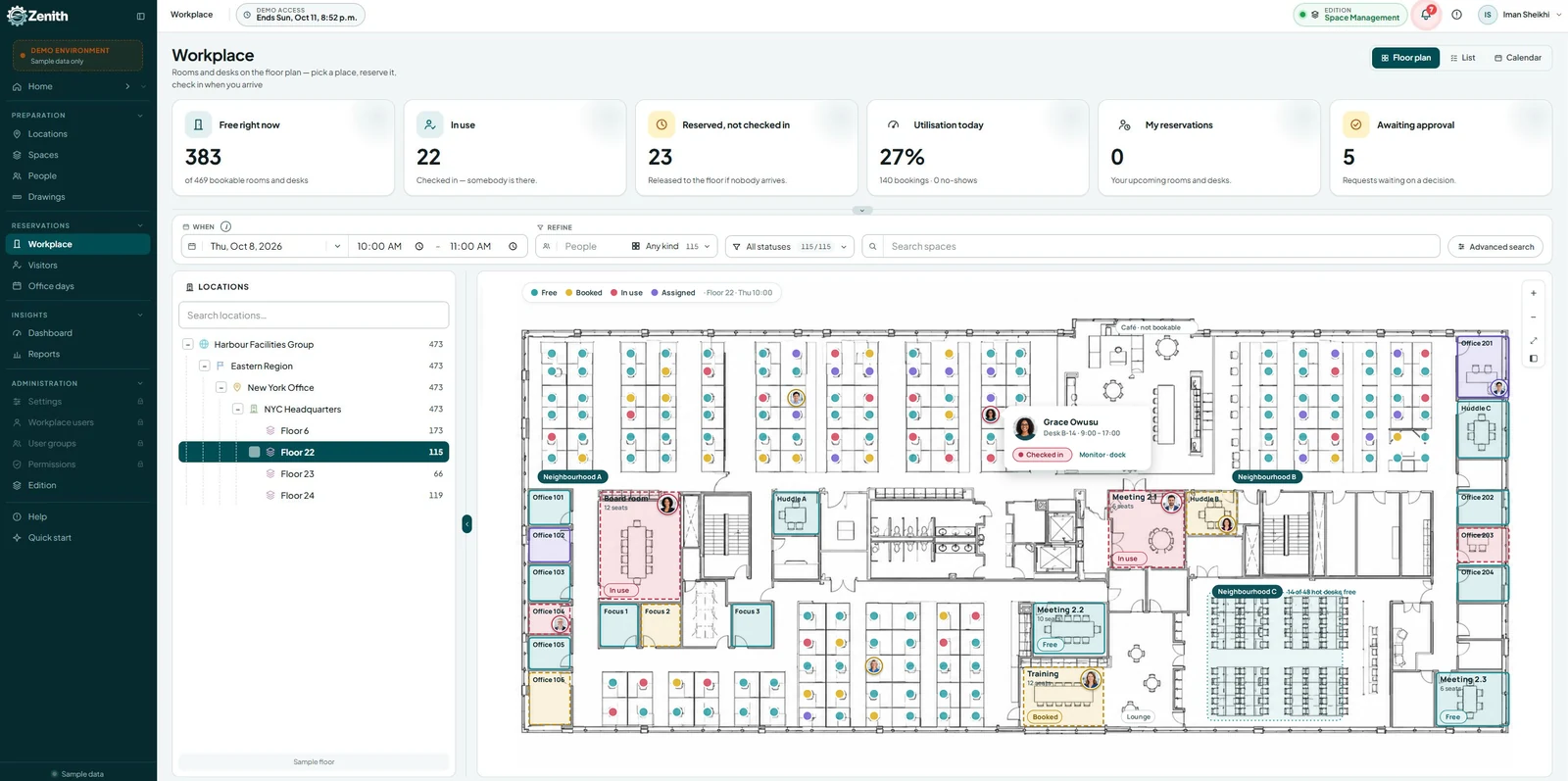

The quality of a new CMMS depends almost entirely on the spreadsheet you feed it. A clean asset list imports in an afternoon; a messy one turns into weeks of corrections and a register nobody trusts. This guide shows how to prepare your maintenance spreadsheets for a CMMS import: the columns you need, the rules that keep an import clean, a cleanup checklist and the mistakes we see most often. It comes with a free Excel import template that has every tab and column already laid out.
If you want the bigger picture first, read our step-by-step plan for moving from spreadsheets to a CMMS. This article zooms in on one step of that plan: getting the data ready.
Five rules of an import-ready spreadsheet
Every CMMS import, whatever the vendor, comes down to the same five rules. If your file follows them, most of the work is done.
- One row per thing. One asset per row in the asset list, one task per row in the PM list. No subtotals, no blank spacer rows, no notes typed between records.
- One value per cell. “Trane / RTU-3 / 2014” is three values; give each its own column. Never merge cells, and never write “see above”.
- Every ID is unique. Two rows with tag AHU-02 will either be refused or, worse, merged into one machine.
- Every reference matches a list. If an asset sits in “BLDG-A-L3”, that location must exist on the locations tab, spelled exactly the same way. The same goes for classes, types and trades.
- One format per column. Dates in one format (we recommend YYYY-MM-DD, which no system misreads), numbers without units in the cell, and statuses from a short fixed list.
The columns you need
Locations
Locations come first, because every asset points at one. Each row needs a unique location ID, a name, the ID of its parent location and its level (site, building, floor or room). That parent column is what turns a flat list into a tree.
Assets
The asset list is the heart of the import. These are the columns we recommend, with the ones you cannot skip marked as required:
| Column | Required | Example | Tip |
|---|---|---|---|
| Asset ID | Yes | AHU-03 | Use the tag printed on the equipment if it is unique |
| Asset name | Yes | Air handler 3, Level 2 | Follow one naming rule for every row |
| Location ID | Yes | VIC-HQ-L2 | Must match the locations tab exactly |
| Class | Yes | HVAC | Pick from a short, fixed list |
| Type | Yes | Air handling unit | Each type belongs to one class |
| Parent asset ID | No | RTU-01 | For components that belong to a larger machine |
| Manufacturer and model | No | Trane, M-Series | Two separate columns |
| Serial number | No | K14B23987 | Copy from the nameplate during the walk-down |
| Install date | No | 2014-06-30 | YYYY-MM-DD; leave blank if unknown, never guess |
| Status | No | In service | In service, down or retired |
| Criticality | No | High | High, medium or low drives PM priority later |
| Warranty end date | No | 2027-03-31 | Lets the system flag work on equipment still under cover |
Preventive maintenance
Each PM row needs a task name, what it applies to (one asset ID or a whole class), the trigger (calendar or meter), the interval and its unit, and the trade that does it. An estimated duration and the checklist steps are worth adding if you have them. If your PM plan is a colour-coded calendar today, our guide on how to build a preventive maintenance schedule you will actually keep helps turn it into rows.
Parts, vendors and history
Parts need a unique part number, a description, a unit of measure, the storeroom, the quantity on hand and a reorder point. Vendors need a name, the trade or service they provide and a contact. Work order history is optional; if you bring it, keep at least the asset ID, the dates, the type of work, what was found and what was done.
Cleanup checklist
Run through this list before every import. Each item takes minutes in Excel and saves hours later.
- Sort by asset ID and look for duplicates; use conditional formatting to highlight them.
- Unmerge every merged cell and fill the gaps with real values.
- Delete blank rows, subtotal rows and notes typed between records.
- Split combined cells such as “Make / Model” into separate columns.
- Replace “see above”, “same”, “ditto” and arrows with the actual value.
- Convert every date to YYYY-MM-DD and check for impossible dates.
- Turn free-text statuses (“ok”, “working”, “fine?”) into your fixed list.
- Check that every location ID on the asset tab exists on the locations tab.
- Trim extra spaces at the start and end of IDs; “AHU-03 ” and “AHU-03” are two different IDs to a computer.
- Move retired equipment to an archive tab instead of deleting it.
- Keep the original file untouched and clean a copy.
Common mistakes we see
- Locations typed differently on every row. “Bldg A”, “Building A” and “A Bldg” become three buildings. Pick IDs from the locations tab instead of typing them.
- Using the room as the asset ID. Equipment moves; a room number in the ID stops being true the day it does.
- Guessed install dates. A blank date is honest; a guessed one quietly distorts every age and replacement figure later.
- Too many classes. Forty classes with one asset each are no better than none. Start with eight to fifteen.
- Importing everything at once. Test one building first; the first import always teaches you something about your data.
Download the free CMMS import template
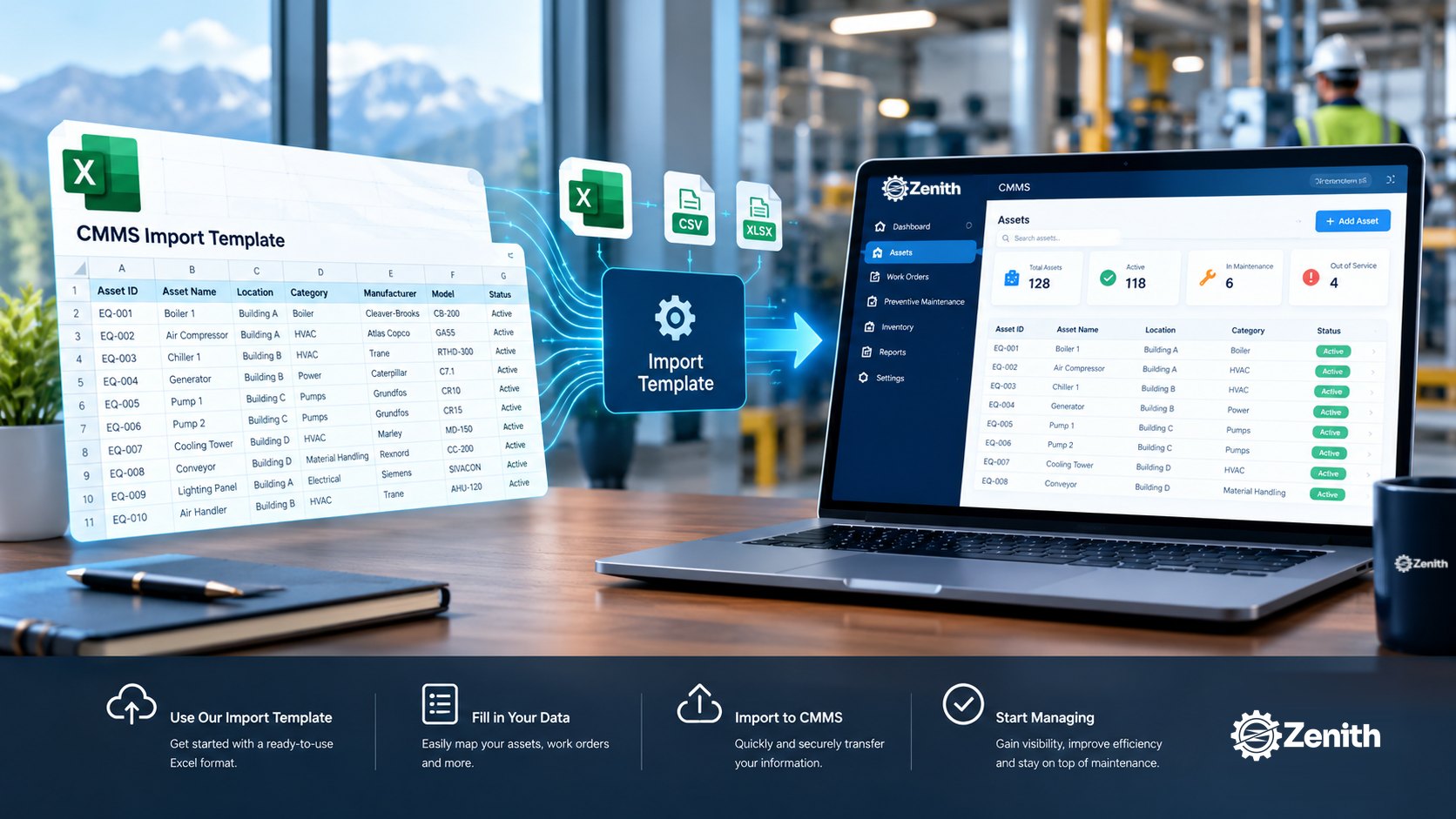
Our Excel import template has a tab for each list: locations, assets, PM schedules, parts, vendors and work order history. Each tab has the columns above in the right order, the required ones marked, a short instruction line and example rows you can overwrite. The class, type and status columns use drop-down lists so the values stay consistent. It works with any CMMS, not only ours.
How Zenith checks your data on the way in
Zenith is built to keep a register clean from the first import:
- Every row is checked before it is saved. Our guided import checks each row before saving anything and names the reason for every refusal, so you fix the source file instead of guessing.
- Duplicates are refused, not merged. An asset ID must be unique, and a second row with the same ID is stopped with the duplicate named.
- Paste straight from Excel. For smaller batches, Quick Add takes rows pasted from a spreadsheet, checks each one on the spot and saves them together.
- Models fill in the details. A model in the catalogue carries its class, type, maker and specifications, so identical equipment is created consistently.
- We do the mapping with you. Send us your spreadsheets as they are; our implementation team proposes the location tree, naming rules and mapping before anything is loaded. Our guide to switching CMMS software describes how that process works.
Zenith is hosted in Canada on Microsoft Azure, works in English and French, and exports any register back to Excel whenever you need it.
Questions people ask
What file format do CMMS imports use?
Most accept Excel (.xlsx) or CSV. Excel is easier to clean because of filters and drop-down lists; save as CSV only if the system asks for it, and check that dates and accented characters survive the conversion.
Which fields are required for an asset import?
At minimum an asset ID, a name, a location, a class and a type. Everything else can be added later, during the walk-down or as work is done.
Should we import our old work orders?
Usually two or three years is enough to see trends and repeat failures. Keep the rest in the original file as an archive.
Can we import French asset names?
Yes. Save the file as Excel or as UTF-8 CSV so accented characters stay intact, and keep one language per column if you need both.
Where to start
Download the free import template, copy your current asset list into the assets tab, and run through the cleanup checklist. Then read our spreadsheet to CMMS migration plan for the steps that follow, or book a demo and bring your spreadsheet along.