

Set it once. It runs itself.
The Report Scheduler turns any report into one that runs automatically. Configure it exactly as you want it delivered, pick a pattern, and it generates on your server and arrives by email — no browser open, nobody signed in, and no heavy attachment clogging anybody's inbox.
Drawing & data reports · PDF or Excel · Delivered by linkIf you can run it, you can schedule it
The scheduler captures whatever was configured at the moment you opened it — the whole configuration, not just the report's name. A scheduled report regenerates from those saved settings and looks exactly like one you produced by hand.
Drawing reports
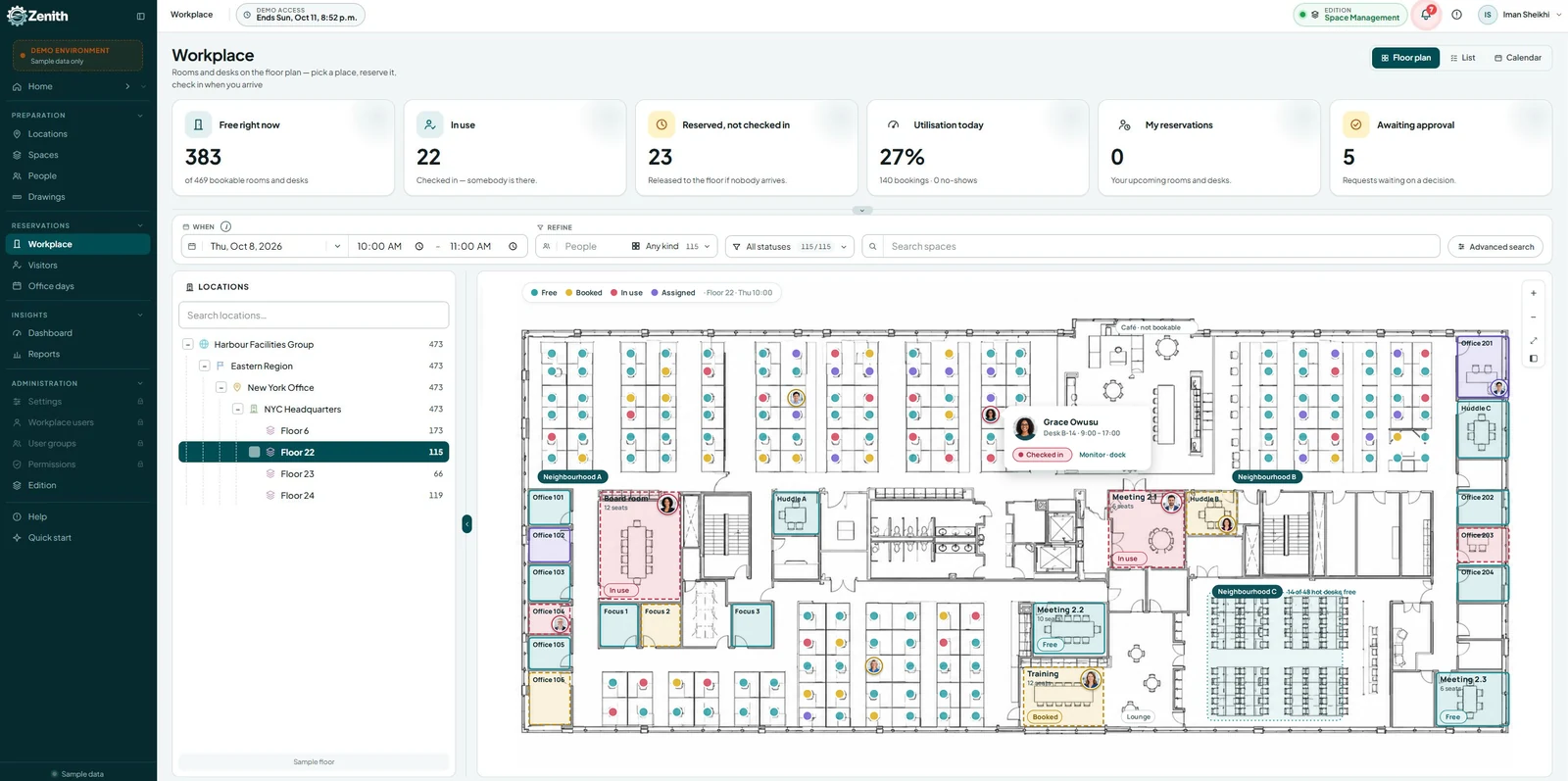
Floor plans with all their visual detail: cost-centre and category themes, colour and pattern fills, room labels and occupant names, the legend, and multi-floor location filters.
Data reports
Standard tabular and data reports, with their columns, filters and parameters stored and reproduced on schedule in the format you chose.
A snapshot, not a shortcut
The schedule captures the report exactly as you had it set up, and stays locked to that configuration for its whole life — which is what makes a monthly report the same report every month.
The location filter travels
Whatever scope you set — a building, a floor, several floors at once — is captured along with everything else and shown on every upcoming run.
PDF or Excel
The output format is part of the captured configuration, and it is one of the things you can filter both Upcoming and History by.
It looks like you ran it
Same theme, colours, legend, room labels and title block as the report you configured — because it is the same report, built from the same settings.
It captures the report you're looking at
You start from the report itself rather than from a blank scheduling form. Set it up exactly how you want it delivered — locations, theme, format, columns, filters — then click Report Scheduling on the toolbar, and the scheduler opens pre-loaded with what you just built.
- Configure first, schedule second — the scheduler takes a snapshot, so the care goes in before you open it rather than after.
- It shows you what it captured — report name, drawing type, theme, orientation, format and the location filter, listed for confirmation before you commit to anything.
- Locked for the life of the schedule — nobody can quietly change what a recurring report contains between one month and the next.
- To change the report, capture a new one — set it up the way you want and create a fresh schedule. Timing, recipients and the message stay editable forever.
Name it, address it, say when
This is where a captured report becomes something people actually receive: a name they will recognise, the people it goes to, an optional line of context, the date the pattern begins, and the recurrence itself.
- The name does three jobs — it appears in Upcoming, in History, and as the subject line of every email the schedule sends.
- Recipients come from your own contacts — type at least three characters to search, click to add, and each one becomes a chip you can remove. Add as many as you need.
- The message is optional and worth writing — a line of context at the top of the delivery email saves the reply asking what this is.
- The start date is where the pattern begins — the first run happens on or after it, according to the recurrence you chose.
Four patterns, and a sentence saying what you chose
Pick a type and the builder reveals only the options that apply to it. Underneath, a plain-language summary restates the whole pattern in English — and if the summary reads the way you intended, the schedule is correct.
Every day, or nearly
Every day, every few days, or weekdays only so nothing lands on a Sunday.
Every 3 daysChosen days
Tap the days it should run, and set how often the week repeats.
Every 2 weeks on FridayA number or a position
A fixed day of the month, or a positional day like the first Monday or the last Friday.
The last FridayOnce a year
A fixed date every year, or a positional day inside a chosen month — handy for fiscal reporting.
First Monday of April“The last Friday”, not “the 28th”
A fixed day number and a positional day answer different questions. If the report is read at a Monday meeting you want the first Monday — not the 1st, which lands on a weekend twice a year and arrives to nobody. Monthly and yearly patterns both offer either.
- Always read the summary — “Every 2 weeks on Friday, for 10 occurrences” is the whole schedule in one sentence, and it is there to be checked rather than admired.
- Three ways to end — never, on a date you choose, or after a set number of occurrences.
- A project with a known end can say so — the schedule stops itself, instead of being something somebody has to remember to turn off.
- Weekdays-only covers the common case — a daily report that should not arrive at the weekend, without building a five-day weekly pattern by hand.
Everything scheduled, before it goes
Upcoming lists every run that is scheduled and not yet delivered. Each card carries the schedule name, its pattern, the next run date, the report details, the location filter and the recipients — so you can confirm exactly what is going out while there is still time to change it.
Pause a series, or hold a single run
The difference matters more than it sounds. Stopping a whole schedule and skipping one awkward week are different intentions, and a scheduler that only offers the first one gets switched off in December and never switched back on.
- Expand a card for the full picture — report variables, the location filter and the recipients, so nothing goes out unseen.
- Pause holds every future run — and resuming puts the schedule back on its normal cadence, picking up where it left off.
- Edit the timing without touching the report — name, recipients, message, recurrence and end condition, after which the upcoming runs regenerate.
- One master switch — the pause icon in the toolbar holds all scheduling at once, and every schedule keeps its settings until you turn it back on.
Search matches recipients, not just reports
“Who was that one going to?” is asked as often as “which report was it?”, so the search box matches both report names and recipient addresses — and it works alongside whatever filters are already applied rather than replacing them.
- From and to date — show only runs whose next date falls inside a window, with either side left blank for an open-ended range.
- Frequency and format — narrow to daily, weekly, monthly or yearly schedules, or to PDF or Excel.
- Status — active, paused or skipped, which is the fastest way to find what somebody held and forgot.
- Named schedules — focus on one or several by name, then Apply, or Clear to start again.
Need it before Friday?
Run Now generates and delivers a report within about a minute, independently of its scheduled date — it queues for immediate generation rather than waiting its turn. The schedule itself is untouched, and its normal runs continue exactly as planned.
- It does not count as a scheduled run — so an early copy for one meeting never shifts the pattern everybody else is expecting.
- It is kept out of History — which is what lets History mean “what this schedule actually produced” rather than “everything anybody ever asked for”.
- Same report, same settings — it is the captured configuration, generated now instead of on the 25th.
Every delivery, downloadable again
History is the archive of every scheduled report that has been delivered: when it went, what was in it, who received it, and a button to download the finished PDF again at any time.
- The details are the ones captured for that delivery — report variables, location filter, recipients and the exact time it was sent, as they were then.
- Only scheduled deliveries appear — on-demand sends are kept out, so History reflects your true recurring output.
- Its own filters — date range, format and schedule, with a search box matching report names and recipients.
- A mail problem never loses a report — if an address is wrong the report is still produced, still recorded as sent, and still downloadable from here.
Everything around the schedule
Start dates that mean it
The first run happens on or after the start date, following the pattern — so a schedule created mid-month behaves the way the calendar says, not the way the save button does.
Expandable cards, both tabs
Report variables, location filter and recipients open on any card in Upcoming and any entry in History — the same three answers, in both places.
Restore a skipped run
A held run does not disappear. It stays on the list with a Restore beside it, so changing your mind is one click rather than a rebuild.
Recipients as chips
Searched from your own contacts, added with a click, removed with one — and shown in full on the card before the run goes out.
Pause without losing anything
The master switch holds every schedule at once. Nothing is deleted, nothing is reset, and each one resumes on its own cadence when scheduling is switched back on.
Download it again, any time
Every scheduled delivery keeps its finished PDF behind a Download button in History — so “can you resend last quarter's?” is answered without regenerating anything.
Honest about big reports
Small and medium reports generate in seconds. One covering a great many drawings at once takes longer to build and deliver — and if that is a regular need, your administrator can advise on the best approach.
Your own mail profile
Deliveries go out through the server's configured mail profile, so they arrive from the address your organization already uses and already trusts.
No session required
A background worker on the server produces scheduled reports on a recurring job. Nobody has to be logged in, and no browser has to be open.
Behind the scenes
A short orientation for the team supporting the feature. End users never need any of it — which is rather the point.
A worker, not a browser
Scheduled reports are produced by a background worker on the server, driven on a recurring job. No signed-in session is involved at any stage.
Configuration it reads itself
The worker takes its database connection and server paths from the standard configuration, so it adapts to each installation without a second setup.
Mail through your profile
Finished reports are emailed through the server's configured mail profile, and delivery is a download link to the report's output location.
Produced even when mail fails
A delivery that cannot be emailed is still recorded as produced and still available from History — so a mail hiccup never loses a report.
Before you book the demo
Can I change the report behind a schedule?
Does anyone need to be logged in for it to run?
Do recipients get an attachment?
What happens if I pause everything?
Can I skip a single run without stopping the series?
Will a delivery fail if one recipient's address is wrong?
How quickly does Run Now deliver?
How large a report can I schedule?
Can I schedule a drawing report with its themes and legend?
Where do I find a report that was delivered last quarter?
Who can I send to?
What does an administrator need to set up?
Bring the report you rebuild every month.
Somebody on your team sets up the same floor plan, the same filters and the same theme on the last Friday of every month, exports it, and emails it round. Capture it once with us and it will do that itself — and every copy it ever sent stays one click from a download.